
Instagram may show “Challenge Required” when it needs the account owner to complete an additional security check before continuing. The prompt can follow an unfamiliar sign-in, repeated actions, a damaged local session, an account-security event, or a service problem. The correct response is to stop repeated attempts, use Instagram's official verification or recovery path, and repair only the local client state you control.
TL;DR / Executive Summary
Confirm the official SMS, email, login-link, backup-code, or recognized-device verification channel. Use one reliable connection and one familiar device while recovering the account. Update Instagram, clear cache or reinstall carefully, and protect local drafts before clearing full app data. If the official checks do not work, use Instagram account recovery or support rather than third-party identity-concealment tools or repeated automation.
What Does “Challenge Required” Mean on Instagram?
It means Instagram is asking for extra verification or restricting an action because the current session cannot continue normally. Meta does not publish a complete internal scoring model for this prompt, so claims about exact fingerprint signals, risk scores, or fixed unlock times should not be treated as documented facts.
For the account owner, the practical meaning is simple: stop repeated requests, read the exact in-app message, and complete the supported verification or recovery step. For an authorized business integration, use the published Instagram Platform APIs and treat authorization or rate errors as stop conditions.
Instagram Restriction & Safe Response Matrix
Observed Level | What You May See | Duration | Impact on the Account | Safe Resolution |
|---|---|---|---|---|
Action restriction | A like, follow, comment, message, or other action is temporarily limited | Varies; Instagram does not publish a universal timer | Some actions are unavailable while the account may still open | Stop the repeated action, review Account Status, and wait before trying again. |
Verification prompt | Security code, login link, recognized-device confirmation, or identity check | Until the supported check is completed or Meta reviews it | Login or selected actions may remain restricted | Use only the official prompt, registered contact methods, backup codes, or account recovery. |
Account lock or suspension | The account cannot be accessed or Account Status shows enforcement | Depends on the case and review outcome | Full or partial access is unavailable | Follow the official appeal, hacked-account, or identity-confirmation flow. |
Top Causes: Why Is Instagram Triggering a Challenge?
Cause 1: Unfamiliar Device, Location, or Interrupted Login
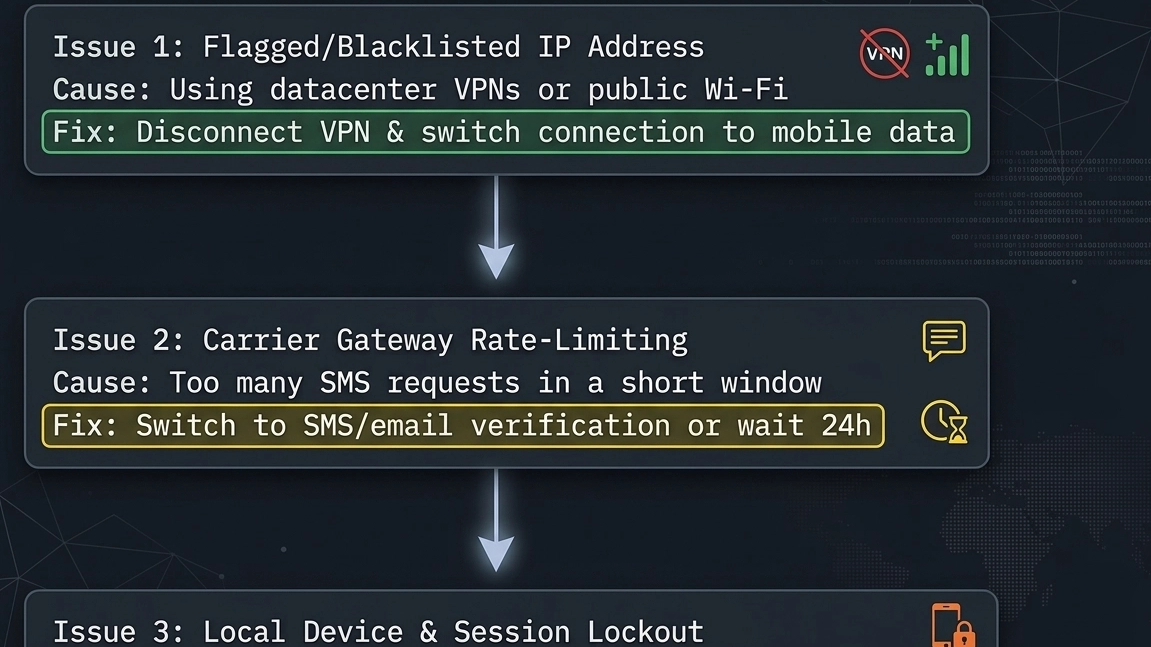
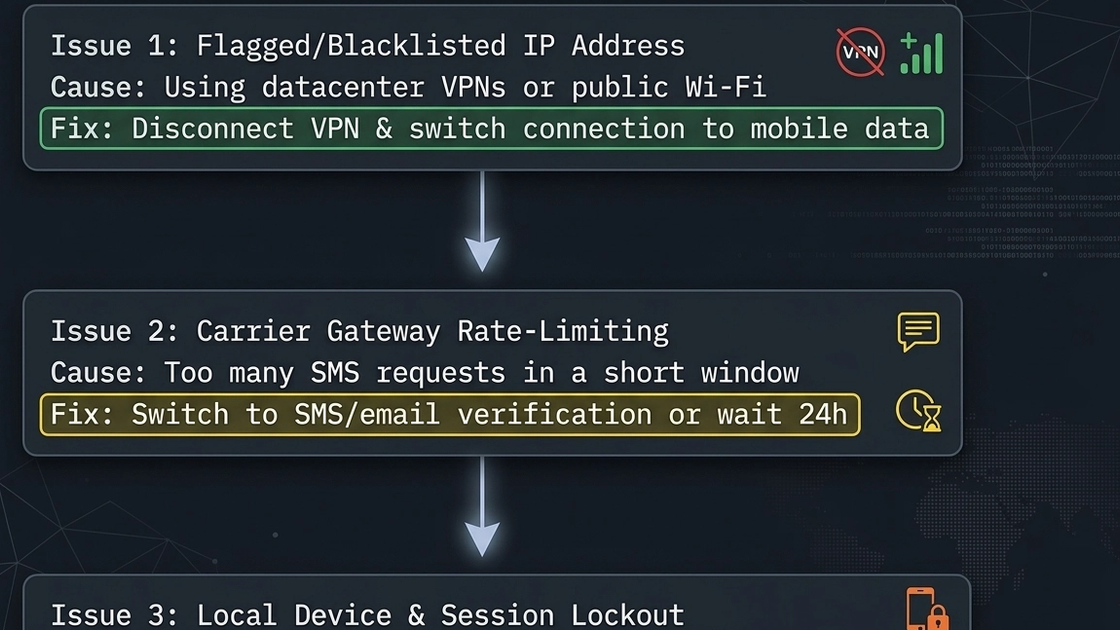
A login from a new device, a different region, a VPN, a public network, or an unstable connection may look different from the account's recent activity. This does not prove the IP itself is “blacklisted.” During recovery, use a device and contact method the account owner recognizes, and avoid changing networks repeatedly.
Cause 2: Repetitive or High-Frequency Activity
Rapid follows, likes, comments, messages, code requests, or login attempts can trigger limits or security checks. Instagram does not publish universal “safe bot” hourly targets. The safe response is to stop, wait, and use approved tools or documented APIs rather than trying to imitate human timing.
Platform Controls & Compliant Response
Activity Pattern | Possible Platform Response | Safe Action | Avoid |
|---|---|---|---|
Many follows, likes, or comments in a short period | Feature limit or action restriction | Stop the action, review Account Status, and resume only when allowed. | Do not rotate IPs or randomize delays to continue. |
Repeated or duplicate messages | Messaging limit or spam review | Pause sending and review consent, audience, and messaging rules. | Do not vary text to evade detection. |
Repeated login or security-code requests | Temporary delivery or login restriction | Wait, verify the registered email/phone, and use a recognized device. | Do not flood the code endpoint or switch identities. |
Unapproved automation or collection | Challenge, restriction, or account enforcement | Stop and use an official API or obtain express permission. | Do not conceal device identity or copy sessions. |
Cause 3: Corrupted App Cache or Expired Local Session
An interrupted update, low storage, or damaged local app data can prevent Instagram from reusing its saved session. Updating the app, restarting the device, clearing cache on Android, or reinstalling carefully can repair the local client without claiming to change Meta's security decision.
Cause 4: Instagram Outage or Platform-Side Problem
A regional or global service issue can cause login, code-delivery, or session failures for legitimate users. Check Meta's official status or support channels and compare behavior on another device. During an active outage, pause repeated retries and wait for recovery.
Outage Verification Checklist
- Check official Meta status and support channels for a known disruption.
- Confirm whether the problem affects the Instagram app, the web version, or both.
- Try a familiar device on one reliable connection; do not cycle through many devices or locations.
- Pause repeated login and code requests while a widespread service issue is unresolved.
How to Fix “Challenge Required” for Regular Users
Step 1: Complete Official Identity Verification
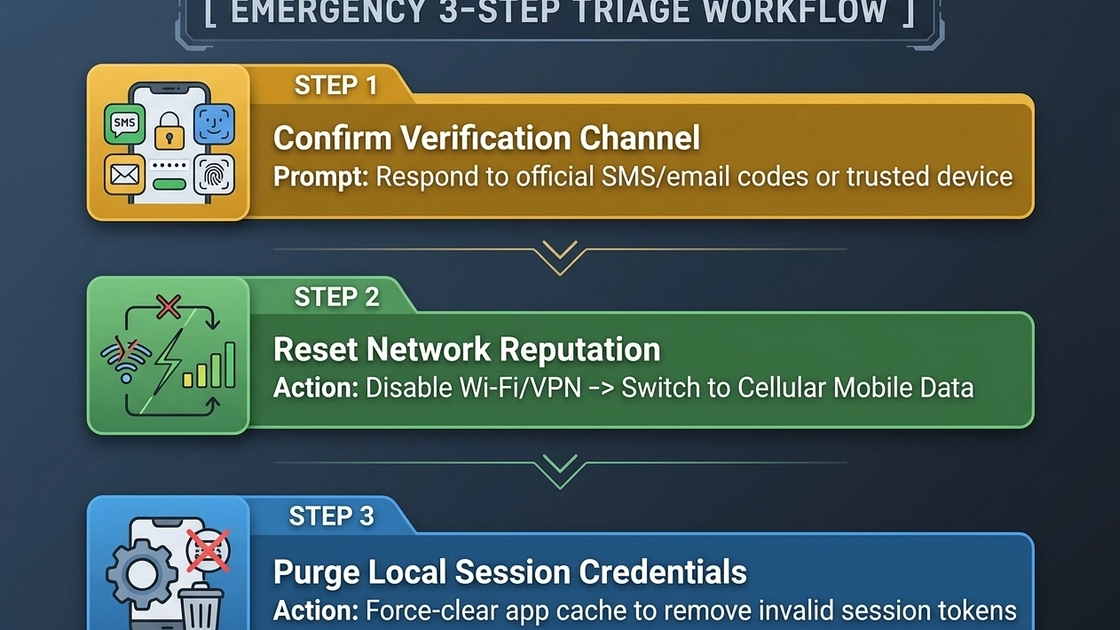
Follow the exact in-app prompt. Instagram may offer a login link, an SMS or email security code, backup codes, confirmation from a recognized device, support, or a video selfie depending on the account and situation. Availability varies, so do not depend on a single method.
- Confirm that the username, email address, and phone number belong to the account owner.
- Check spam or junk folders and wait a few minutes before requesting another code.
- Use a previously recognized device and the official Instagram app or website.
- If 2FA is enabled, use the authenticator or a backup code stored by the account owner.
- If account contact information was changed unexpectedly, use the hacked-account recovery flow.
Step 2: Stabilize the Device and Network
Use one familiar device and one reliable private connection while completing verification. Disconnect an unstable VPN or proxy during consumer account recovery. Switching from Wi-Fi to cellular data can test whether the original connection is failing, but it does not create a guaranteed “trusted IP” or bypass a challenge.
Network Connection Troubleshooting Comparison
Check | Private Wi-Fi | Cellular Mobile Data |
|---|---|---|
Connection ownership | Prefer a known home or business network you control | Prefer the account owner's normal mobile service |
Continuity | Keep the same stable connection during the verification attempt | Avoid moving between towers or locations during repeated recovery attempts |
Common issue | Captive portals, DNS problems, router filtering, or an unstable VPN | Weak signal, carrier code-delivery delay, or data restrictions |
Safe action | Disable an unstable VPN, check connectivity, and retry once | Use as an alternative only to test connectivity; then wait if Instagram still restricts access |
Step 3: Clear App Cache & Refresh Local App State
Repairing local files can help when the app itself is stuck. It does not guarantee that a server-side challenge will disappear.
iOS Procedure
- Open Settings > General > iPhone Storage > Instagram.
- Confirm that important drafts are saved. Offloading preserves some data, while deleting the app may remove local content.
- Update, offload and reinstall, or reinstall Instagram from the App Store.
Android Procedure
- Open Settings > Apps > Instagram > Storage & cache.
- Tap Clear cache first and reopen Instagram.
- Use Clear storage/data only after saving drafts and confirming login and recovery methods.
Step 4: Use Official Recovery or Support
If normal verification fails, request an official login link or security code, follow the hacked-account path when appropriate, and complete any identity confirmation offered by Instagram. The source document's claim that “Download Your Information” forces a session reset is not supported by official documentation and is not recommended as a workaround.
- Visit the official Instagram recovery page from a secure browser and a device the account owner controls.
- Use a secure email address that only the account owner can access when support requests one.
- Complete a video-selfie or other identity check only inside the official recovery experience.
- After recovery, change the password, confirm contact details, review linked accounts and sessions, remove suspicious third-party apps, and enable 2FA.
Advanced Prevention for Marketers & Authorized Integrations
Businesses should use Meta's approved Instagram tools and published APIs, assign the minimum required permissions, protect credentials, and stop when the platform returns an authorization, rate, or security error. Instagram's Terms prohibit automated access or collection without express permission, including while logged in.
Connectivity Options for Authorized Workflows
Network Type | General Origin | Session Behavior | Typical Authorized Use | Important Limitation |
|---|---|---|---|---|
Datacenter connection | Cloud or hosting provider network | Usually stable server egress | Approved API clients, CI, monitoring, or owned-system testing | Does not grant Instagram permissions or consumer-account access. |
Static residential proxy | ISP-sourced address assigned for a continuing session | Longer continuity from one address | Authorized localization or continuity testing | A stable address cannot unlock an account or override Meta controls. |
Dynamic mobile proxy | Carrier-network egress, often with shared addressing | Rotating or sticky sessions depending on the product | Authorized mobile-localization and connectivity testing | It cannot be used to evade or override an account challenge. |
Operational Safety Principles
- Use official Meta APIs or tools approved for the business task.
- Bind access to the real account owner, least-privilege permissions, and protected credentials.
- Do not rely on fixed “safe automation” rates; stop at platform limits and review the workflow.
- Do not use browser fingerprint manipulation, copied cookies, randomized behavior, or IP rotation to continue after denial.
- Use MiyaIP routing only for explicitly authorized network and localization requirements; it provides connectivity, not permission.
Conclusion & Safety Best Practices
The reliable way to handle Instagram Challenge Required is to preserve account ownership signals, complete official verification, repair the local app carefully, and use recovery or support when the prompt does not clear. For business integrations, documented APIs, permission evidence, conservative request handling, and audit logs are safer than any attempt to disguise automation.
Four-Step Instagram Challenge Recovery
Complete the official verification prompt
Use the in-app SMS, email, login link, recognized-device confirmation, authenticator, or backup-code option available to the account owner. Request codes conservatively.
Stabilize the device and connection
Use one familiar device and one reliable connection. Disconnect an unstable VPN or proxy during recovery and avoid rapidly changing devices, networks, or locations.
Refresh the official app safely
Update Instagram, restart the device, clear cache where supported, or reinstall carefully. Save drafts and confirm recovery methods before clearing full app data.
Escalate through official recovery
If verification still fails or the account may be compromised, request an official login link or security code, follow the hacked-account flow, and complete any support or identity check offered by Instagram.
Frequently Asked Questions
What is the fastest way to fix the “Challenge Required” error?
Use the official verification prompt on a familiar device, stop repeated requests, confirm a stable connection, and refresh the Instagram app or cache. If the account is compromised or verification fails, use official recovery.
Why am I stuck in a verification loop despite entering the correct code?
The code may have expired, too many requests may have been made, the app may hold stale local state, or Instagram may still require another ownership check. Wait, use a recognized device, request a new code conservatively, and use recovery if necessary.
Can free VPNs or datacenter proxies bypass Instagram security checkpoints?
No legitimate proxy can grant account authorization or guarantee removal of a security checkpoint. Disconnect unstable third-party routing during recovery and use the official verification or appeal path.
Will clearing my Instagram app cache delete my posts or drafts?
Published posts and account data remain on Meta's servers, but full app-data clearing can remove unpublished local drafts. Save drafts before clearing storage or reinstalling the app.
Sources & Compliance References
Instagram Terms of Use — automated access or collection requires express permission.
Instagram Help: If you think your Instagram account has been hacked — official login-link, security-code, support, video-selfie, and account-security guidance.
Meta: How We Combat Scraping — Meta distinguishes authorized from unauthorized automated collection.
Choose routing only after the workflow is authorized
MiyaIP static residential proxies support longer ISP-sourced sessions, while dynamic mobile proxies support carrier-network routing for authorized localization and connectivity testing. Neither product unlocks Instagram accounts or bypasses challenges.