
MIYAIP × CLASH
Connect MIYAIP Proxies to Clash
Choose a client, prepare your proxy profile, and verify the route your applications use.
Use your MIYAIP proxy endpoint as an upstream connection in a Clash-compatible client. Start with the protocol, server, port, and authentication details supplied with your proxy, then choose the setup path for your device.
Prepare your MIYAIP connection details
For a stable residential exit, start with a static residential plan. Copy the connection details for the endpoint you will use. Clash manages local routing; the selected MIYAIP plan determines the upstream IP, location, and authentication requirements.
View Static Residential Plans| Detail | How it is used |
|---|---|
| HTTP or SOCKS5 protocol | Selects the outbound node type in the profile. |
| Server and port | Identify the remote endpoint. They are separate from the client’s local listening port. |
| Username and password, if required | Authenticate the outbound connection. |
| Source-IP authorization, if required | Must include the network from which the connection reaches the endpoint. |
| Expected exit and location | Provide a reference for the final connection check. |
Use the protocol supplied with your endpoint. For an HTTPS proxy, follow the TLS settings in the static proxy guide. Session and rotation behavior come from the proxy plan and its connection settings.
Read the static proxy configuration guideStart with the configuration you already have
| You have | Next step |
|---|---|
| Proxy entries with a host, port, and credentials | Use the Proxy Format Converter to create Clash / Mihomo YAML. |
| A complete compatible YAML profile | Import and activate the file in your client. |
| A compatible subscription URL | Add it as a remote profile in the client. |
The converter works with endpoint lists. Import subscription URLs through the client that supports them.
Build a local profile from endpoint details
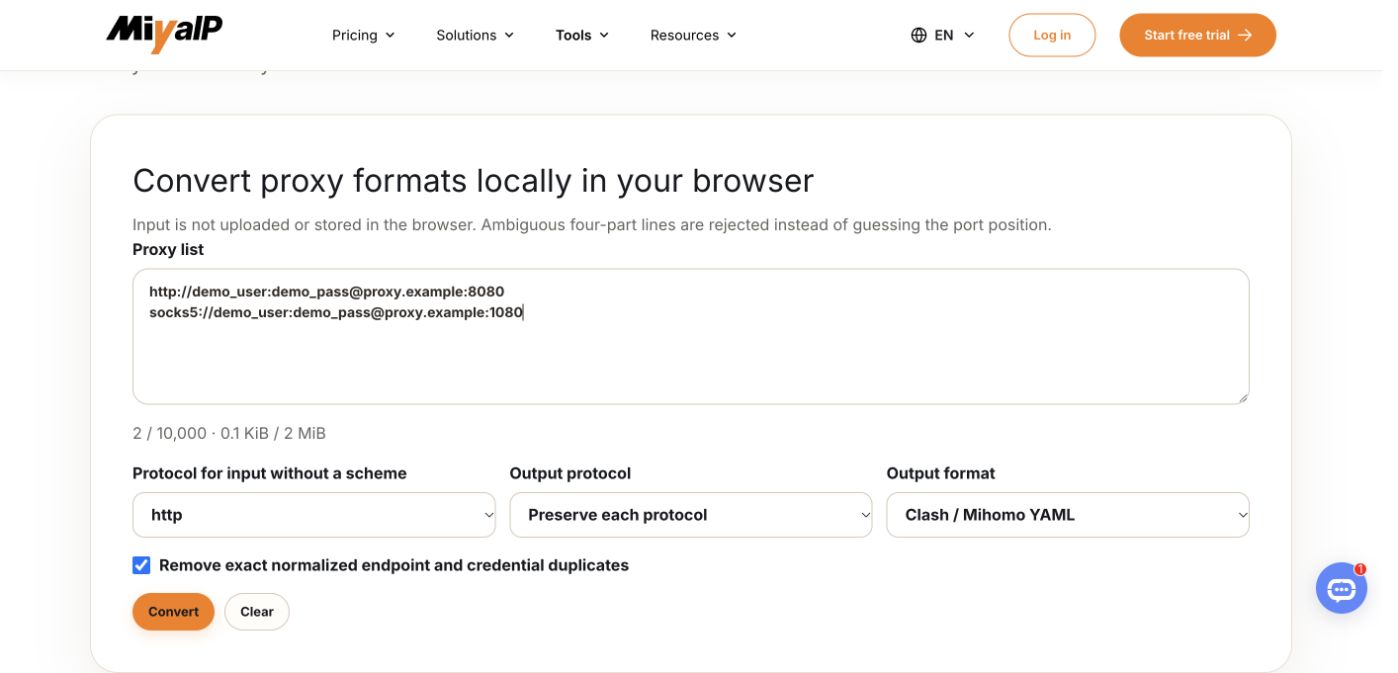
- Paste one proxy entry per line into the Proxy Format Converter.
- Preserve the endpoint protocol and choose Clash / Mihomo YAML.
- Convert the list and resolve any invalid or ambiguous rows.
- Use Export file and confirm credential inclusion when prompted. Save the YAML for your client.
- Import the file, activate it, and select your endpoint in the MiyaIP Proxy group.
Choose the guide for your device
Windows setup and CFW migration
Choose a Windows build or move an existing CFW profile.
Android setup
Choose an APK, import a profile, and enable Android routing.
Mac setup
Choose Intel or Apple Silicon and configure browser and terminal routes.
Mihomo core
Validate a YAML file and run the core from a terminal.
Clash Verge Rev desktop setup
Activate a profile, choose a node, and configure System Proxy or TUN.
Static proxy configuration
Map HTTP, HTTPS, or SOCKS5 fields into a complete profile.
Confirm the route from your application
Start the client, activate the intended profile, and choose the proxy in the group matched by your rules. Send a fresh request from the application you configured. Check its connection record, then open What Is My IP in the routed browser and compare the result with the expected exit.
Open What Is My IP| What happens | Continue with |
|---|---|
| The profile cannot load | Correct the YAML or regenerate it from the endpoint details. |
| The client reports an authentication error | Check protocol, port, credentials, and source-IP authorization. |
| Only one application bypasses the proxy | Check that application’s proxy settings or the client’s capture mode. |
| The exit does not match | Inspect the matched rule, selected group, and node. |
Frequently asked questions
Does MIYAIP provide the Clash application?
Clash-compatible clients and the Mihomo core are separate projects. Download them from their official project pages; MIYAIP supplies the upstream proxy connection details.
Can I add an HTTP or SOCKS5 endpoint without a subscription URL?
Yes. Generate a local YAML profile from the endpoint details, then import and activate it in your client. A subscription URL is another input option, not a requirement for this setup.
Which guide should I follow if I already use Clash Verge Rev?
Use the desktop setup guide for profiles, node selection, and routing. Use the static proxy guide when you need to map the endpoint’s HTTP, HTTPS, or SOCKS5 fields into YAML.
Will every application use the proxy after I import a profile?
Activate the profile and configure the route used by each application. Some applications follow System Proxy; others need an app-level local proxy setting or TUN. Verify a request from the application itself.
Connect a stable residential endpoint
Choose a static residential plan, build a profile from its connection details, and follow the guide for your platform.