
Use Selenium web scraping when the data you need appears after a browser renders the page or performs an interaction. The important step is waiting for the state that makes the data usable, rather than assuming a page-load event or fixed delay means extraction can begin.
This Python example opens a fictional local catalogue, waits for the first batch, clicks Load more, waits for the next batch and saves three products. It separates browser interaction from the later validation of extracted records.
Workflow at a glance
1. Prepare the browser and local example
Install Selenium in your Python environment:
2. Complete a Selenium web scraping workflow
Save this as
selenium_products.py:3. Wait for the condition that completes your task
The example waits for
data-page="1", then fordata-page="2". This is more specific than waiting for one product element, which would already exist before the second batch loads.4. Re-find elements after the page changes
Some interfaces replace a whole result container after a click. Previously located elements can become stale. The sample locates product elements after the second batch is complete, rather than keeping references captured before the interaction.
5. Validate the result before saving it downstream
Check that the expected fields are populated, identifiers are unique where required and the number of records fits the scope you collected. Preserve the source and collection time for a recurring job.
6. Add network settings before starting the session
For an HTTP proxy without embedded authentication, Chrome options can select the proxy before the browser starts:
1. Prepare the browser and local example
Install Selenium in your Python environment:
python -m pip install seleniumYou also need a compatible installed browser and driver. Selenium's standard driver setup can use Selenium Manager; a restricted network or managed workstation may require an explicitly configured driver. Follow the official browser setup documentation for your environment.
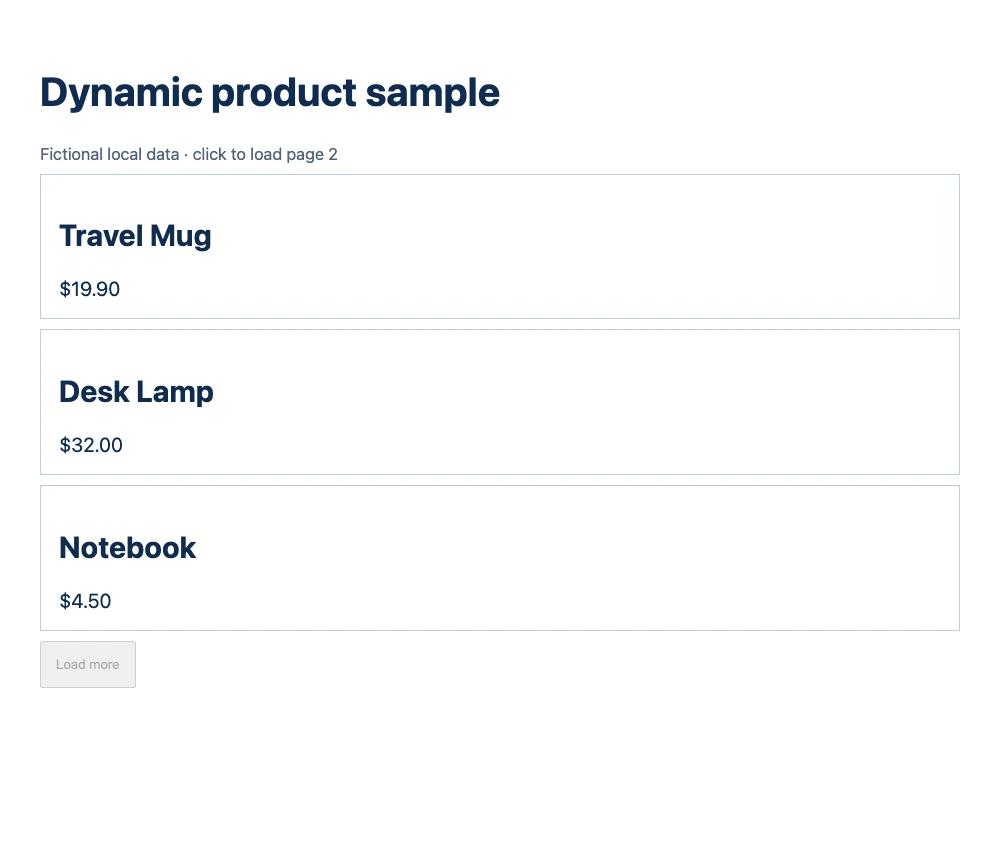
Start the accompanying demo_server.py with python3 demo_server.py. Open http://127.0.0.1:8766/dynamic. The server sends an empty product container; JavaScript adds the initial two records and the button loads a third record.
This page deliberately exposes data-page on its product container. It changes after each batch is inserted. The attribute is part of this tutorial fixture, not a universal feature of websites.
2. Complete a Selenium web scraping workflow
Save this as selenium_products.py:
import json
from selenium import webdriver
from selenium.webdriver.common.by import By
from selenium.webdriver.support.ui import WebDriverWait
from selenium.webdriver.support import expected_conditions as EC

driver=webdriver.Chrome()
try:
    driver.get("http://127.0.0.1:8766/dynamic")
    wait=WebDriverWait(driver,10)
    wait.until(lambda d:d.find_element(By.ID,"products").get_attribute("data-page")=="1")
    wait.until(EC.element_to_be_clickable((By.ID,"load"))).click()
    wait.until(lambda d:d.find_element(By.ID,"products").get_attribute("data-page")=="2")
    rows=[]
    for card in driver.find_elements(By.CSS_SELECTOR,"article.product"):
        rows.append({"id":card.get_attribute("data-id"),"name":card.find_element(By.TAG_NAME,"h2").text,"price_usd":card.find_element(By.CSS_SELECTOR,".price").text.lstrip("$")})
    with open("selenium-products.json","w",encoding="utf-8") as f:json.dump(rows,f,ensure_ascii=False,indent=2)
    print(json.dumps(rows,indent=2))
finally:
    driver.quit()
Run python selenium_products.py from the directory containing the file. The script writes selenium-products.json and closes the browser in a finally block, including when an exception interrupts extraction.
The output contains three fictional records: Travel Mug, Desk Lamp and Notebook. The first two appear after the initial render; the third appears after Load more completes.
3. Wait for the condition that completes your task
Condition | What it establishes | What it does not establish |
|---|---|---|
Element is present | A matching node exists | It is visible, enabled or populated |
Element is visible | It has a displayed state and size | A business operation is complete |
Element is clickable | It is visible and enabled | No overlay or later page change can interrupt the click |
Expected data or state appears | Your selected completion signal is satisfied | Every record on the website was collected |
The example waits for data-page="1", then for data-page="2". This is more specific than waiting for one product element, which would already exist before the second batch loads.
On another site, a useful condition might be a changed result count, a known item identifier or a loading indicator disappearing together with new rows appearing. Choose a condition you can explain from the page's behavior.
Avoid mixing implicit and explicit waits: Selenium documents that the combination can produce unexpected wait times. See its waits guide.
4. Re-find elements after the page changes
Some interfaces replace a whole result container after a click. Previously located elements can become stale. The sample locates product elements after the second batch is complete, rather than keeping references captured before the interaction.
If you hit StaleElementReferenceException, inspect when the site updates its DOM. Re-locate the element after a meaningful state transition. An unlimited loop that retries the same stale reference does not fix the underlying timing problem.
For multiple load-more operations, put a limit on clicks or collected pages and track the records already seen. Stop when the documented completion condition is met. A disabled button in this fixture is one such signal; real sites may behave differently.
5. Validate the result before saving it downstream
Check that the expected fields are populated, identifiers are unique where required and the number of records fits the scope you collected. Preserve the source and collection time for a recurring job.
If an optional field is missing, decide whether to retain a partial row. If a required field is missing, report it instead of replacing it with a value that looks genuine. Text extracted from a browser still needs the same currency, date and type checks as data from an HTTP client.
Use an HTTP client and parser when the required data is already present in the response and no browser interaction is needed. The Python scraping guide explains that lighter route.
6. Add network settings before starting the session
For an HTTP proxy without embedded authentication, Chrome options can select the proxy before the browser starts:
import os
from selenium import webdriver

options = webdriver.ChromeOptions()
options.add_argument("--proxy-server=" + os.environ["MIYA_PROXY_URL"])
driver = webdriver.Chrome(options=options)
Use the actual protocol, host and port supplied for the endpoint. Do not assume this flag handles username/password authentication; authenticated proxy setup depends on the browser and environment. Follow the MIYAIP connection guide and verify the browser's route separately.
Configure the network route, waits and selectors separately. After changing the destination, confirm the required elements and the scope of the returned data.
Frequently asked questions
Does Selenium render JavaScript?
It controls a browser that can execute page scripts. Your code still needs to wait for the resulting state before reading it.
Should I use time.sleep() after every click?
Use a condition tied to the expected page change. A fixed delay can be unnecessarily slow on one run and too short on another.
Can headless mode change the result?
It can affect rendering or site behavior. Debug with a visible browser first, then verify the same required fields and interactions in the mode used by your job.
Keep Selenium when your application needs direct browser control. For a task already supported by MIYAIP's interface catalog, compare the asynchronous Crawler API route.