
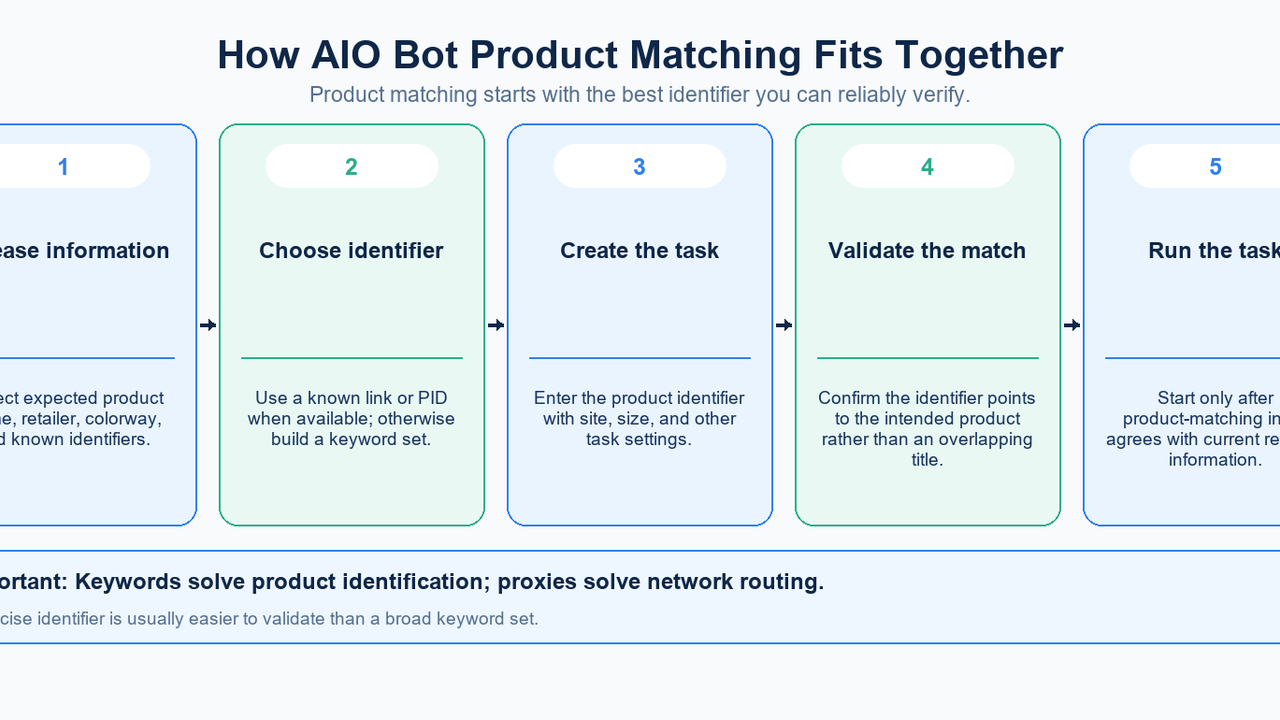
AIO Bot keywords describe the product a task should identify when you do not have a verified product link or supported product ID. A useful set distinguishes the intended item from similar listings. It cannot make an unsupported task mode work, and it cannot fix a failed network connection. First validate the product match, then configure the rest of the task.
This tutorial separates three decisions that are often mixed together: which product to identify, which retailer mode accepts the input, and which network endpoint carries the request. You will learn a repeatable validation process and see where MIYA proxies fit. The goal is to reduce avoidable configuration mistakes, not to promise a purchase, a successful checkout, or access that the retailer does not permit.
How product matching works
A keyword task starts with the retailer and task mode. Those choices determine which product inputs are meaningful. The task then applies the supported identifier to the product data it receives. A name-based match is useful when the final URL is unknown, but similar titles can contain the same words. A task that confidently identifies the wrong product is still incorrectly configured.
Consider a fictional title such as Example Brand Runner 20 Blue Adult. The word Runner may identify a whole family. Adding 20 distinguishes the model, and Blue narrows the color. Adult may matter if a children’s edition shares the same name. These are examples of information to check, not an AIO Bot command string or a verified retailer listing.
The official AIO Bot setup guide was published in July 2021. Its examples use keywords or early links for Shopify and PIDs for some other site families. That is useful historical evidence that identifier choices vary by mode. It is not a current compatibility list, and this tutorial does not infer today’s supported retailers from that article.
Keywords, PID, SKU, or an early link
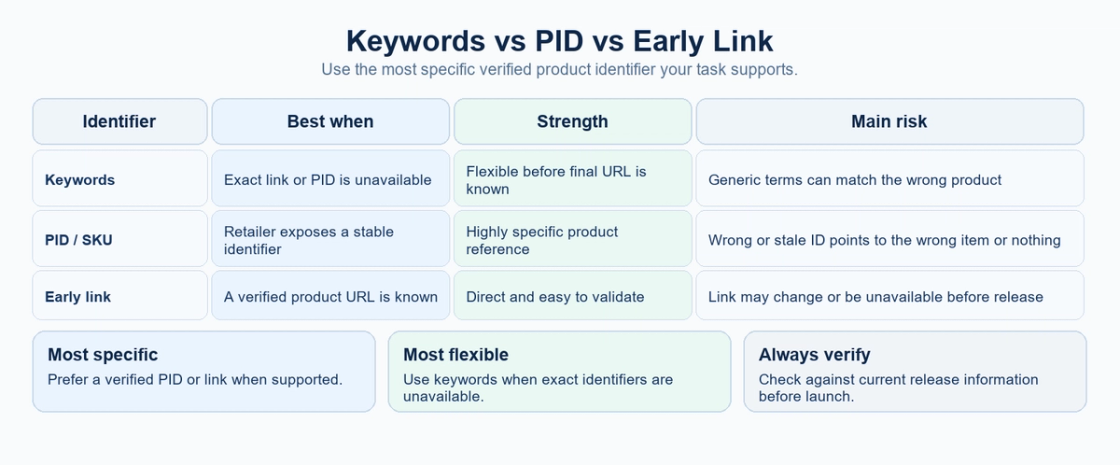
Input | Useful when | Main advantage | What to verify |
|---|---|---|---|
Keywords | The expected title is known but the final link is unavailable | Can describe a product before its URL is confirmed | Specificity, supported syntax, and possible competing matches |
PID or SKU | The retailer and task mode accept a known identifier | Can refer to a more precise product or variant | Correct retailer, product, variant, and identifier field |
Early product link | A verified URL is available before the release workflow completes | Makes the intended page easier to inspect | Correct destination, locale, variant, and current task support |
Use the most specific verified input supported by the current task. A PID is not automatically better if it points to the wrong variant. A link is not automatically reliable because somebody shared it. A keyword set is not automatically weak if it clearly separates the desired listing. Precision comes from checking the reference against the intended product.
A repeatable keyword validation workflow
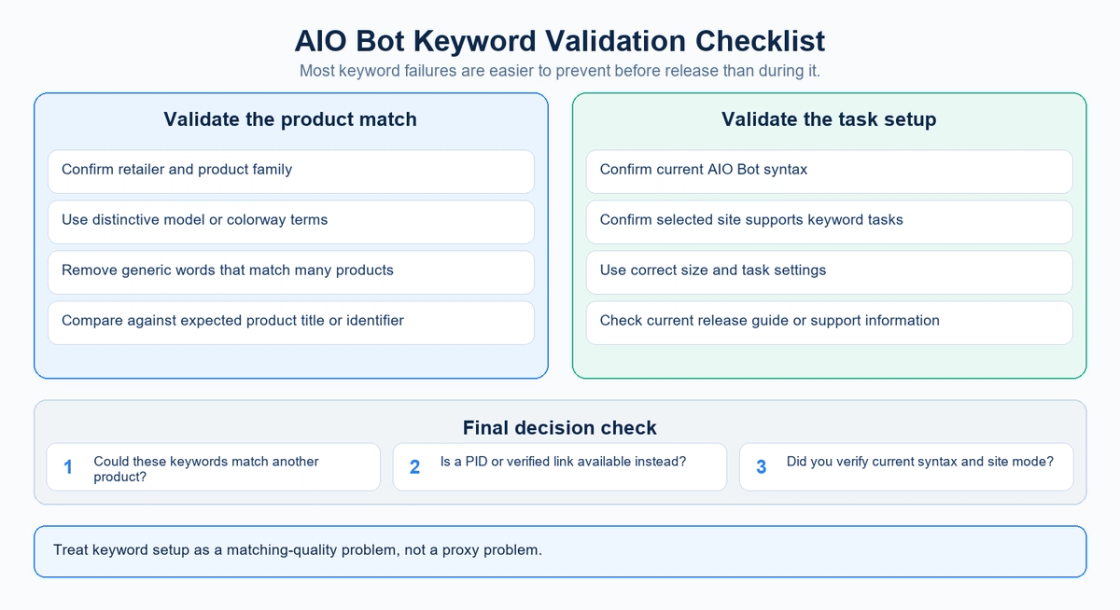
Seven checks before relying on the task
Confirm the retailer and current task mode
Open the current application and select the intended retailer before entering product terms. Check the field label and the current support or release instructions. Establish whether the task expects keywords, a product ID, or a URL. If the current mode does not support keywords, changing separators will not convert it into a keyword task. Record the site and mode alongside the input so the setup can be checked later.
Gather the product details from a current source
Identify the product family, model, colorway, edition, and any variant detail that matters to your task. Prefer the retailer’s own naming when available. A social post may use a nickname that never appears in the listing. Keep uncertain details separate from confirmed ones. Do not add a collaboration name merely because it is associated with the release in discussion; confirm that it belongs to the product you intend to identify.
Build a small, distinctive set of terms
Start with the model or another distinctive product term, then add information needed to separate similar listings. Remove terms that occur across nearly the entire catalog. More words can make a set harder to maintain without improving discrimination. At the same time, do not omit a color or edition term when that is the only difference between the intended item and another likely match.
Check both a positive and a negative example
Compare the proposed terms with the target listing or the best available current reference. Then inspect at least one similar product that should not match. Ask which term separates them. If both listings contain every distinguishing term you chose, the set needs revision or a more precise identifier. If the intended listing lacks an assumed word, remove that assumption rather than adding unrelated words.
Verify the exact field syntax before saving
Confirm the separator, handling of spaces, and any supported matching operators in the current interface or official support instructions. Do not assume a string copied from an old review works in every version. Keep the semantic terms and the formatted field value separate in your notes. That makes it possible to correct syntax without changing the product description or accidentally carrying unsupported operators into another mode.
Configure the network independently
Once the product input is valid, configure the proxy endpoint if the task requires one. Match the client’s supported protocol and input format with the details supplied by the selected MIYA product. Confirm credentials, region, and whether the workflow needs a stable exit. A working connection verifies a network path; it does not certify the keyword set, retailer compatibility, or checkout result.
Review the match and stop on ambiguity
Use a supported preview, monitor result, or controlled test to inspect the product that was actually identified. Compare its name and relevant variant with your reference. Keep a record of the identifier and observed result without storing payment data or secrets. If the result is ambiguous, resolve it before relying on the task. If a verified PID or early link becomes available, reassess whether it is now the better input.
Why a keyword set finds the wrong item
Most false matches can be traced to an assumption about the product data. A broad brand and model may cover several colorways. The retailer may abbreviate an edition name. Adult and junior listings may share the same base title. A task may be using the wrong identifier type. Start with the observed wrong product and identify the exact piece of information that should have excluded it.
The reverse problem also matters: a set can be so specific that it never matches the intended listing. An unofficial nickname, extra word, or assumed punctuation rule can exclude the right product. Test specificity against real information, not the number of terms in the field. Changing several terms at once makes the effect of each edit difficult to understand.
Keyword syntax and historical examples
There is no verified universal keyword string in this tutorial. Older articles may show separators or task settings that belonged to a specific version. The underlying idea of describing a product remains useful, but the literal input must match the current field. If current guidance is unavailable, do not present a historical example as a tested setup.
Keep three questions distinct: do these words describe the product, does this field support that kind of input, and is this the correct syntax for this mode? A formatting error can look like a bad keyword set, but adding more product terms does not repair an unsupported separator. Conversely, perfect formatting does not make a generic product description precise.
Where MIYA proxies fit
A product identifier answers which item the task should recognize. A proxy endpoint answers where a configured network request is routed. Keeping these layers separate makes a failed run easier to diagnose. If the wrong item was identified, investigate the identifier first. If the correct item was identified but a later connection failed, investigate the client and network path before rewriting the terms.
MIYA offers static residential proxies for workflows needing a fixed ISP-backed exit and dynamic residential proxies for workflows that need changing residential exits. Select the product according to the session behavior your application requires. A multi-request interaction may depend on a consistent exit, while independent checks can have different needs. Confirm the selected plan’s actual behavior before configuring the task.
Use the endpoint, authentication details, and supported protocol supplied by your account, then follow the client’s own proxy input requirements. Do not assume all applications accept the same credential string. Keep secrets out of shared examples and logs. The MIYA setup FAQ is the appropriate internal reference for product-specific connection questions; the bot’s current documentation remains the reference for its input fields.
Proxies do not improve the meaning of a keyword set, guarantee availability, or remove retailer rules. Treat connection success, product-match accuracy, and the outcome of a transaction as separate observations. That distinction prevents network changes from masking an unresolved matching problem.
Monitors, tasks, and last-minute changes
A monitor observes a product or availability condition; a task acts on its configured input. The monitor finding a new listing does not prove that the listing is the one you intended. When new release information arrives, compare it with the saved reference. Update a stale PID or URL deliberately, and recheck the match after changing an identifier rather than assuming all previous validation still applies.
Frequently asked questions
What are AIO Bot keywords?
They are product-description terms used by a supported task mode to identify the intended listing. Their usefulness depends on the retailer’s product data and the current application field. They are separate from proxy settings, billing details, and network routing.
How should I format the keywords?
Use the syntax documented for the current version, retailer, and task mode. Verify separators and operators before saving. This guide explains how to choose meaningful terms, but it does not certify an old review’s literal keyword string as current.
Can I use keywords for Shopify tasks?
The 2021 official AIO Bot guide included that pattern. Confirm present support in the current application and official guidance; a historical example does not establish that every current Shopify retailer or mode accepts keywords.
Are product IDs always better than keywords?
No. A verified and supported product ID can reduce ambiguity, but the wrong ID still identifies the wrong item. Check the product, variant, and retailer. Prefer the most precise input that you can validate and that the task actually supports.
Why does adding more words sometimes stop a match?
An additional term may be absent from the retailer’s title, may describe a different variant, or may be interpreted differently by the matching rules. Check each added assumption against the actual listing instead of using length as a measure of quality.
Can a MIYA proxy fix false product matches?
No. A proxy affects the configured network path, not the meaning of product terms. Correct the identifier when the wrong item is matched. Check proxy credentials and connectivity when the identified item is correct but the request cannot complete.
Where should release information come from?
Use current retailer information and the bot’s current official support or release guidance. Keep the source and the time you checked it with your task notes. Treat third-party strings as unverified until they agree with the product and the current field requirements.
What should I record during validation?
Record the retailer, task mode, identifier type, confirmed product details, formatted input, and observed match. Keep network checks in a separate note. Avoid including proxy passwords, payment information, or other secrets in a shared troubleshooting record.
Match the product, then choose the network setup
Review MIYA proxy products for the connection behavior your task requires. Validate a small setup before expanding it, and keep product matching checks separate from network checks.
Sources
References checked on September 22, 2026. The AIO Bot article below is historical guidance from July 2021; use the current interface and official support for live compatibility and syntax. MIYA product pages describe the networking options discussed here.
AIO Bot official sneaker bot setup guide, July 2021.
MIYA static residential proxies, dynamic residential proxies, and setup FAQ.