
Web scraping with R works well when a page contains the records or HTML table you want to analyse. Use httr2 to make the request, rvest to select and parse the content, and explicit validation before exporting a data frame.
This guide extracts a fictional product table into a CSV. It also shows how to handle repeated cards, missing values and network configuration without confusing retrieval with analysis.
Workflow at a glance
1. Install the packages and open the sample
Install httr2 and rvest in R:
2. Request the page and parse its table
Save the following as
products.Rand run it from an R session or withRscript products.R:3. Inspect the result before analysis
The expected example records are:
4. Extract repeated cards when there is no table
For a card layout, select each record container first, then extract one value per container:
5. Diagnose an empty extraction
Static parsing does not execute JavaScript. The rvest HTML documentation distinguishes the raw-HTML workflow from browser-assisted reading. A blank result is a reason to inspect the response, not an automatic reason to change your IP address.
6. Configure a proxy only when the request needs one
httr2 supports explicit proxy settings. Keep the proxy's host and credentials separate from the destination URL:
1. Install the packages and open the sample
Install httr2 and rvest in R:
install.packages(c("httr2", "rvest"))Start the supplied demo_server.py in a separate terminal with python3 demo_server.py, then open http://127.0.0.1:8766/table. The page contains three fictional products and columns named id, name and price_usd.
Using a local page gives you a stable input while you build the extraction. Move to a real target only after you know how the parser should behave when data is present, missing or malformed.
2. Request the page and parse its table
Save the following as products.R and run it from an R session or with Rscript products.R:
library(httr2)
library(rvest)

response <- request("http://127.0.0.1:8766/table") |>
  req_timeout(15) |>
  req_perform()
document <- resp_body_html(response)
prices <- document |>
  html_element("table#prices") |>
  html_table(convert = FALSE)
stopifnot(identical(names(prices), c("id", "name", "price_usd")))
prices$price_usd <- as.numeric(prices$price_usd)
stopifnot(!anyNA(prices$price_usd), !anyDuplicated(prices$id))
write.csv(prices, "r-products.csv", row.names = FALSE, na = "")
print(prices)
The request has a 15-second timeout. httr2's normal request processing reports HTTP failures; the parser then selects table#prices rather than collecting every table on the page.
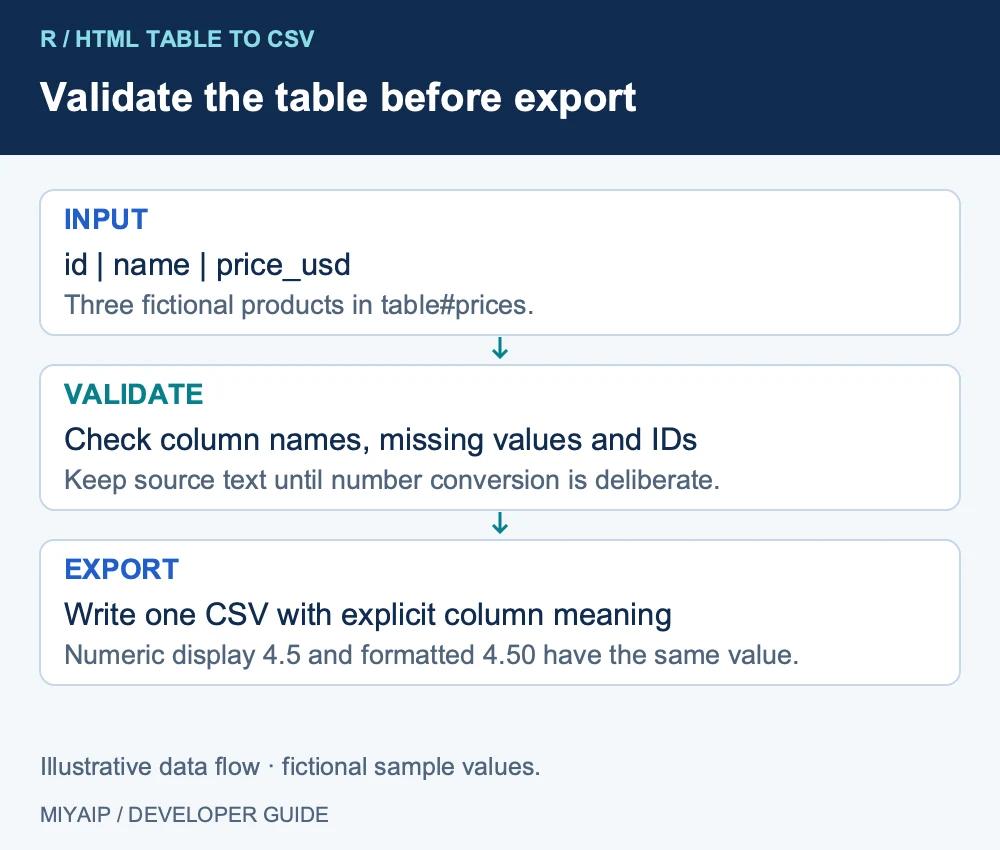
html_table(convert = FALSE) keeps the source cells as text initially. The script validates the expected columns, converts the price deliberately and checks missing values and duplicate identifiers before saving the CSV.
With a single table node, rvest returns a tibble; with several nodes, it returns a list. That distinction matters when your analysis expects one data frame. See the rvest table reference for its treatment of merged and missing cells.
3. Inspect the result before analysis
The expected example records are:
id | name | price_usd |
|---|---|---|
p1 | Travel Mug | 19.90 |
p2 | Desk Lamp | 32.00 |
p3 | Notebook | 4.50 |
R may print numeric prices as 19.9 or 4.5. That does not change the numeric value. Apply display formatting later if you need two decimal places in a report; keep a numeric column for calculations.
A real page may use currency symbols, decimal commas or a label such as “Contact us”. Do not remove all non-digit characters and assume the remainder is a valid price. Define the source's currency and number format, retain the original value where useful, and make unparseable values visible.
4. Extract repeated cards when there is no table
For a card layout, select each record container first, then extract one value per container:
library(rvest)
page <- read_html("http://127.0.0.1:8766/products")
cards <- html_elements(page, "article.product")
products <- data.frame(
  id = html_attr(cards, "data-id"),
  name = html_text2(html_element(cards, "h2")),
  price_text = html_text2(html_element(cards, ".price"))
)
print(products)
This example reads page one and returns two products. To collect the remaining record, follow the next-page link with a page cap and a record of visited URLs.
Selecting all names and all prices independently can misalign columns when one product lacks a price. Selecting inside each card preserves the relationship between a record and its fields.
5. Diagnose an empty extraction
Symptom | Check | Next action |
|---|---|---|
Zero selected nodes | Actual response HTML and selector | Correct the selector or identify the unexpected page |
Data appears only after rendering | Raw HTML versus rendered DOM | Use a suitable browser-assisted route |
Missing or repeated rows | Container scope and pagination | Validate identifiers and follow the actual pagination |
Numeric conversion produces NA | Original cell values and number format | Handle exceptional values explicitly |
Static parsing does not execute JavaScript. The rvest HTML documentation distinguishes the raw-HTML workflow from browser-assisted reading. A blank result is a reason to inspect the response, not an automatic reason to change your IP address.
6. Configure a proxy only when the request needs one
httr2 supports explicit proxy settings. Keep the proxy's host and credentials separate from the destination URL:
library(httr2)
req <- request("https://example.com/") |>
  req_proxy(
    url = Sys.getenv("MIYA_PROXY_URL"),
    username = Sys.getenv("MIYA_PROXY_USER"),
    password = Sys.getenv("MIYA_PROXY_PASSWORD")
  ) |>
  req_timeout(15)
response <- req_perform(req)
Set those environment variables from your actual account details before running this optional example. The httr2 proxy reference defines the supported arguments. Use MIYAIP's proxy connection guide to confirm the endpoint and connection mode.
Frequently asked questions
Can rvest handle every JavaScript page?
The static workflow reads returned HTML. If a browser creates the required content later, use a browser-assisted approach suitable for that site and validate its rendered result.
Why are there NA values in my table?
Cells may be missing, or conversion may not understand their format. Inspect the original values and table structure before replacing NA values.
Can I schedule the R script?
Yes, through your normal job runner. Save collection timestamps, failures and row counts so a scheduled run is not mistaken for a complete dataset merely because a file exists.
Run your own requests when you need custom extraction. For a supported managed collection task, MIYAIP Crawler API lets your application retrieve a task result for subsequent processing.