
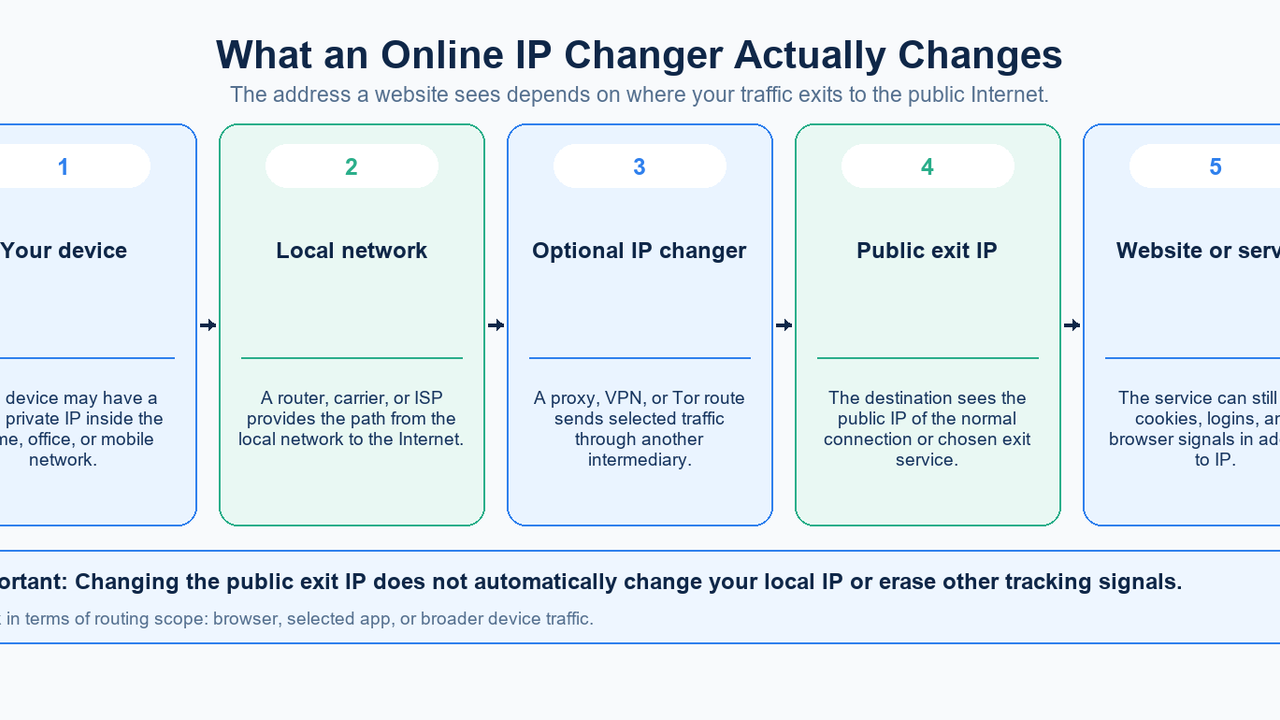
An online IP changer is a tool or network method that makes websites see a different public IP address. It usually works by routing traffic through a proxy, VPN server, Tor exit relay, or another Internet connection. It changes the network exit for the traffic that uses that route; it does not automatically change your browser identity or make you anonymous.
For a MIYA user, the practical task is to choose an appropriate proxy, configure the intended browser or application, and verify the result from that same client. This guide compares the alternatives, walks through that process, and explains why a successful proxy test alone does not prove that every application uses the new IP.
What changes: public IP, local IP, and routing scope
A public IP is the address visible outside the network; a private IP identifies a device within a local network. On a typical home IPv4 connection, multiple devices can share one public exit while keeping separate private addresses. Mozilla’s IP address explanation describes this distinction. Enabling a browser proxy can therefore leave your laptop’s Wi-Fi address unchanged while changing the address seen by a website.
Think in terms of the connection path: device → ISP → website becomes device → proxy → website. The website sees the proxy as its network peer for that connection. Another application that does not use the proxy can still connect through the original route. “Onlineipchanger” is a search phrase, not a guarantee of any particular routing scope or privacy feature.
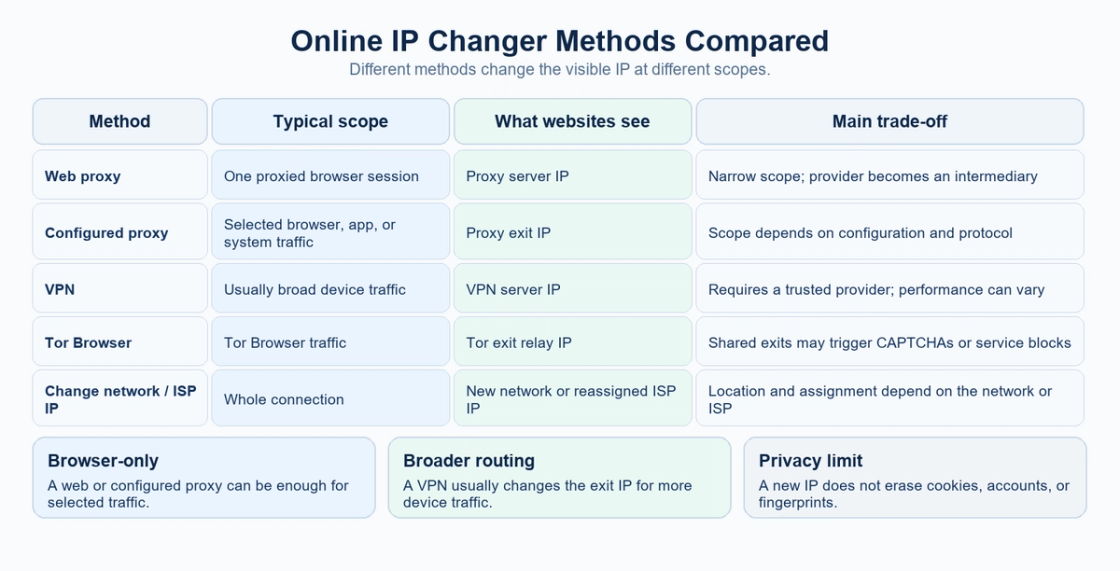
Compare the main ways to change your public IP
A configured proxy is useful for selected applications. Firefox’s connection settings distinguish manual proxy configuration, system settings, automatic detection, and configuration scripts. A VPN generally serves broader device routing, but the actual coverage depends on its configuration. Cloudflare’s VPN overview explains the intermediary VPN connection; HTTPS to the destination remains a separate part of protecting web traffic.
Tor’s relay documentation explains that websites reached through the network see the exit relay’s IP. This differs from using a single ordinary proxy, and Tor Browser is the appropriate starting point when its browser privacy model is the requirement. Shared exits can attract additional verification, as described in Tor’s CAPTCHA guidance.
Method | Traffic affected | Visible public exit | Main consideration |
|---|---|---|---|
Web proxy | Pages loaded through the proxy service | Web proxy server | Convenient but narrow; the operator handles the proxied pages. |
Configured proxy | Browser or application configured to use it | Proxy exit | Explicit control; other applications may remain direct. |
VPN | Traffic included in the VPN configuration | VPN server | An encrypted tunnel to the provider; check split-routing settings. |
Tor Browser | Tor Browser traffic | Tor exit relay | Distinct privacy model; shared exits may face challenges. |
Another network | Traffic on the selected connection | That network’s exit | Simple for diagnosis; limited control over the assigned address. |
Switching from home Wi-Fi to mobile data or another authorized connection can also change the public exit. A router restart sometimes results in a new address, but it is not a reliable “new IP” button: the ISP controls the assignment. Mozilla notes that home public addresses can change. Do not confuse changing a local adapter address with obtaining a new public address.
Choose a MIYA route that fits the task
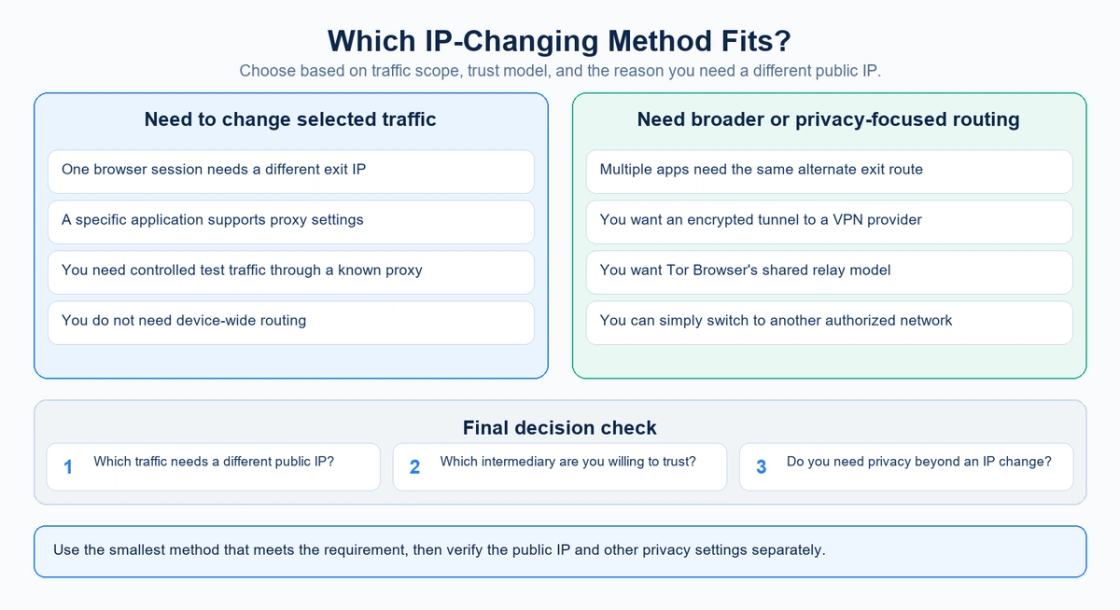
Start with the reason for the change. For an authorized localization check or network troubleshooting session, decide whether you need a stable exit throughout the workflow or fresh exits between independent requests. An IP that changes midway through a stateful workflow can complicate the test, while keeping one exit forever may not match a request-by-request sampling task.
The MIYA static residential proxy page is the relevant starting point when a stable assigned proxy is the requirement. The dynamic residential proxy page introduces the rotating option. Choose from actual account availability and the destination’s permitted usage; a product category alone does not establish compatibility with every website.
In the dynamic residential setup interface, MIYA provides “Rotate every request,” “Sticky session,” and “Manual API switch” modes. Sticky mode also exposes a duration selector. Use the generated settings from your own account rather than copying a hostname, port, password, or session username from someone else’s example. Session duration is a routing setting, not a promise that an upstream exit can never change.
Change and verify your IP with MIYA
1. Record a baseline in the intended client
Open MIYA’s IP and Browser Environment Check in the browser you will use. Record the observed public address and which IPv4 or IPv6 checks are available. If the actual workload runs in a script, collect its baseline separately. A browser result cannot establish the route of a remote server or a different application.
Write down the intended result before changing settings: for example, one browser should use a selected proxy while other applications keep their existing route. This gives you a concrete acceptance condition instead of treating any new number as success.
2. Select the product and prepare connection details
Open the appropriate product in the MIYA dashboard. For dynamic residential traffic, select the available targeting and rotation options, then copy the generated endpoint and credentials. For an assigned static proxy, use that proxy’s supplied connection details. Confirm account availability before troubleshooting the application.
Keep the hostname, port, protocol, username, and password together as one configuration. A changed session username combined with an old password or incorrect endpoint creates a different test from the one you intended. Store credentials privately and avoid putting them in shared notes, screenshots, or public diagnostic output.
3. Configure only the intended browser or application
Enter the proxy hostname and port in the application’s supported proxy settings, then supply authentication using its normal mechanism. In Firefox, start at Settings → General → Network Settings → Settings and choose the configuration that matches the endpoint. The official Firefox instructions explain these controls. Recheck any bypass list rather than assuming every destination is proxied.
MIYA’s generated connection details are the source of truth. Match HTTP or SOCKS settings to the selected endpoint; do not infer the protocol from an arbitrary port number. For clients that cannot authenticate or use the required protocol, consult that client’s documentation before choosing another integration.
4. Test the application route and the proxy independently
Reload IP and Browser Environment Check in the configured browser and compare it with the baseline. Separately, Proxy Checker can check whether a supplied endpoint completes its fixed HTTPS request and report the observed exit. That second test runs from MIYA’s test service; it does not prove that your browser has adopted the proxy.
For a command-line client, the examples below use ipify’s documented public-IP endpoint. Replace every DASHBOARD placeholder with your generated values. Supplying only the username lets curl prompt for its password; avoid placing the password directly in a shared command. These commands are written for Bash. On Windows, run them in Git Bash or WSL Bash; Windows PowerShell users must adapt argument handling for their version, so replacing curl with curl.exe alone is not sufficient.
# Baseline without an explicit application proxy
curl --noproxy "*" "https://api.ipify.org?format=json"

# HTTP proxy: replace every DASHBOARD placeholder; enter the password when prompted
curl --noproxy "" --proxy "http://HOST_FROM_DASHBOARD:PORT_FROM_DASHBOARD" --proxy-user "USERNAME_FROM_DASHBOARD" "https://api.ipify.org?format=json"

# SOCKS5 proxy with destination hostname resolution at the proxy
curl --noproxy "" --proxy "socks5h://HOST_FROM_DASHBOARD:PORT_FROM_DASHBOARD" --proxy-user "USERNAME_FROM_DASHBOARD" "https://api.ipify.org?format=json"
The curl manual documents proxy authentication and SOCKS options. The socks5h form delegates destination hostname resolution to the SOCKS proxy. The first command bypasses application proxy settings, but an active VPN or network gateway can still affect its route; disconnect only if doing so fits your authorized test.
5. Verify stability, scope, and recovery
Repeat the check using the same client and intended workflow. With a stable-session requirement, observe the exit across several requests. With rotation, check behavior across independent requests instead of assuming that every displayed result must be unique. Test other applications only if your intended scope includes them.
Finally disable the application proxy and confirm the expected baseline behavior returns. If you changed several settings, restore them one at a time and record the result. Preserve a known-working configuration so a later timeout or authentication error does not lead to guesswork.
Read the result without overclaiming
An unchanged IP can mean that the proxy is disconnected, authentication failed, the application bypassed the proxy, or the provider selected the same exit. A changed IP establishes a different observed network exit for that test. It does not establish that the target website will accept the connection or that a long session will remain stable.
MIYA’s browser environment check presents IPv4, IPv6, DNS, WebRTC, and browser facts as separate signals. A difference between DNS and IP locations is a reason to inspect the setup, not automatic proof of a leak. An unavailable check is also not proof of safety. Compare observations before and after one controlled change.
What an IP change does not hide
Accounts and browser state continue to matter. If you remain signed in, the service still knows which account is active. MDN’s cookie guide explains how cookies maintain state; changing a route does not erase that state. Clearing cookies is a separate action and may sign you out.
Browser fingerprinting can combine properties such as language, timezone, fonts, and display settings. An IP change does not automatically change those properties or information you submit to a website. Likewise, Chrome’s Incognito documentation describes limits on local session storage, not a new network route. Incognito alone is not an IP changer.
Evaluate free services and use the smallest suitable scope
Free services vary, so price alone cannot establish trust. Identify the operator, review its privacy policy and connection model, and understand which traffic it receives. A web proxy that handles page content is a different trust arrangement from an application using an HTTPS destination through a configured proxy. Do not install an unexplained certificate just to obtain a different address.
For ordinary MIYA testing, begin with one authorized client and a non-sensitive request. Expand only after confirming the route and understanding the provider’s role. Useful applications include diagnosing network-specific failures, checking permitted regional presentation, and keeping a repeatable exit for an approved workflow. Changing IP does not remove a website’s terms or an organization’s network rules.
Frequently asked questions
Will a router restart give me a new public IP?
Sometimes, but the ISP’s assignment and lease behavior decide the result. The same address can return after reconnecting. Verify rather than promising a new address; see Mozilla’s explanation.
Does switching Wi-Fi to mobile data change my IP?
It can because traffic moves to a different network exit. The carrier controls the assigned address. Recheck from the application you are using, especially if a VPN or proxy remains active.
Is a proxy the same as a VPN?
No. A configured proxy usually serves selected application traffic, while a VPN can cover a broader set of routes and provides a tunnel to its server. Check actual scope rather than relying on the product label.
Should I choose a sticky or rotating proxy?
Choose according to the workflow: keep a session route when continuity matters, and use rotation for independent, permitted requests that require it. In MIYA, start with the generated settings and test the behavior against your acceptance condition.
Why does Proxy Checker show a new exit while my browser does not?
The checker tests the supplied endpoint from its own service. Your browser still needs a working proxy configuration. Check its selected mode, protocol, credentials, bypass rules, and extensions, then rerun the browser check.
Can an IP change remove all tracking or guarantee access?
No. Login state, cookies, fingerprints, destination policies, and network conditions remain relevant. Treat an IP change as a routing change with a measurable scope, not a guarantee of anonymity or acceptance.
Verify the route before choosing a larger setup
Start with a baseline, configure one client, and compare the result. Use the measured scope and session requirements to decide whether static or dynamic residential proxies fit your task.
Sources
References checked on 22 September 2026. Available product options and connection details depend on your account.
Mozilla — What is an IP address?
Mozilla Support — Connection settings in Firefox
Tor Project — Types of relays on the Tor network
Tor Support — CAPTCHAs and warning messages
Google Chrome Help — Browse in Incognito mode
ipify — A Simple Public IP Address API
MIYA — IP and Browser Environment Check; Proxy Checker; static residential proxies; dynamic residential proxies; dashboard.