
Overview
Workflow at a glance
Identify the active route
Record the proxy host, port and protocol used by the failing runtime.
Inspect CONNECT and retest
Read the CONNECT response, fix the indicated condition, and revisit the original destination.
ERR_TUNNEL_CONNECTION_FAILED means Chromium could not establish a tunnel through the configured proxy. Start by finding which proxy Chrome is using, then inspect the proxy's response to an HTTPS CONNECT request. A password problem, an unsupported destination port and an upstream failure need different fixes.
The same error can appear in Edge or in a Chromium browser launched by Playwright or Puppeteer. Diagnose it from the device or container that actually makes the request.
Next steps
What failed: the proxy connection or the HTTPS tunnel?
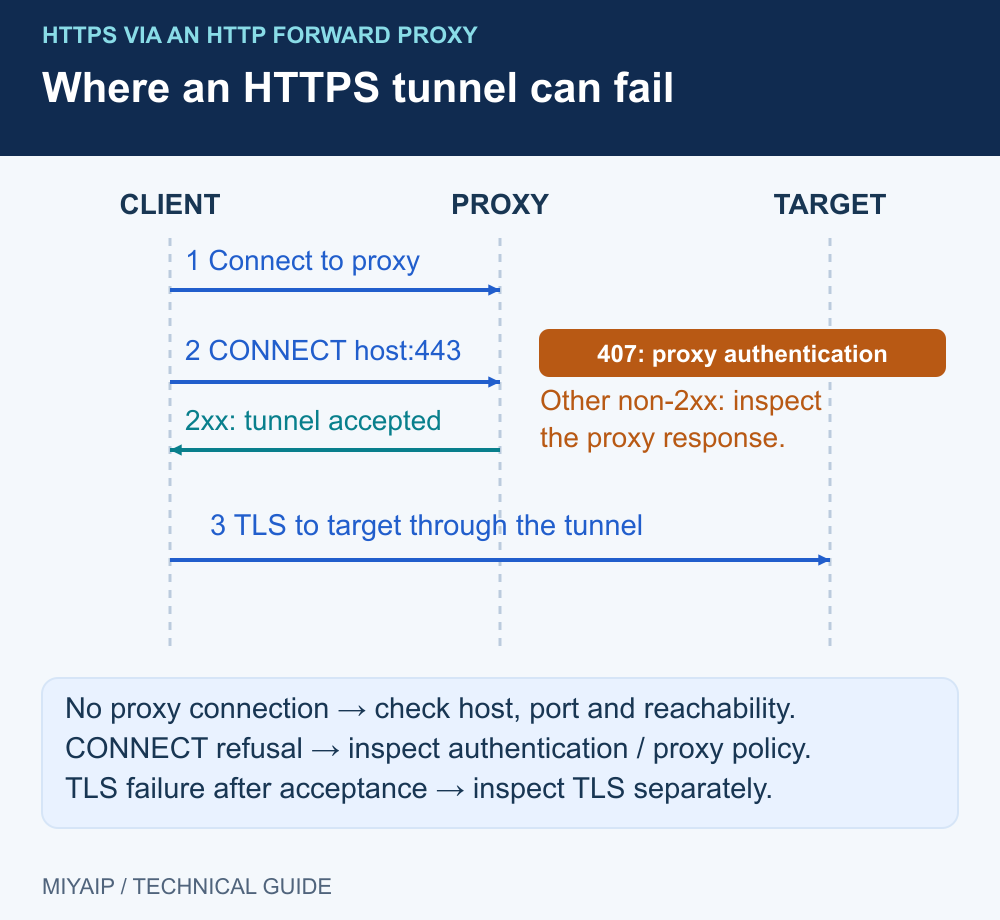
An HTTP proxy normally opens an HTTPS route in two stages: the client connects to the proxy, then asks it to connect to the destination host and port. Once the tunnel is established, the client can negotiate TLS with the destination through that route.
Observation | Investigate first |
|---|---|
ERR_PROXY_CONNECTION_FAILED | Whether the client can reach the configured proxy endpoint |
ERR_TUNNEL_CONNECTION_FAILED | The CONNECT exchange, proxy policy, authentication and onward connection |
HTTP 407 from the proxy | The required proxy authentication method and supplied credentials |
A certificate validation error after a tunnel opens | The certificate chain and hostname for the relevant TLS connection |
These are different failure stages. Chromium defines the tunnel error separately from its proxy connection error in the network error list. The error alone does not identify the failed provider component or prove that the destination is healthy.
1. Identify the proxy that is actually active
Check Chrome's system proxy link, any proxy extension enabled in the current profile, and any VPN or local client that installs a system proxy. On a managed device, a policy or PAC file may choose the route. Record the actual host, port and protocol before changing anything.
If the endpoint is 127.0.0.1, the proxy must be running in that same network environment. In a container, that address refers to the container itself. If an old setting is unintended, remove it through the application that owns it and test again. Keep required organization routes under the administrator's control.
For MIYAIP, use the assigned connection endpoint, not the displayed exit IP. Native and relay connections can require different network paths. The static proxy connection guide explains the fields and routing conditions.
2. Test an HTTPS request through the same HTTP proxy
Run this macOS/Linux command after replacing the three placeholders. Supplying only the username makes curl prompt for the proxy password. The example targets example.com; repeat with the failing HTTPS destination to compare results. Use the HTTP or HTTPS proxy scheme actually supplied by the service.
curl --proxy 'http://PROXY_HOST:PROXY_PORT' \
  --proxy-user 'PROXY_USERNAME' --noproxy '' \
  --connect-timeout 10 --max-time 30 \
  --silent --show-error --output /dev/null \
  --write-out 'connect_status=%{http_connect} target_status=%{http_code}\n' \
  'https://example.com/'
On Windows, use curl.exe, place the command on one line and replace /dev/null with NUL. Check NO_PROXY exclusions in the runtime you use; older PowerShell versions may not pass an empty native argument as expected.
connect_status reports the HTTP proxy's CONNECT response. 000 means no such response code was recorded; it does not identify a cause. A successful CONNECT and a successful destination response are separate observations. For a SOCKS5 proxy, follow the protocol-specific connection examples instead of expecting an HTTP CONNECT status.
3. Use the response to choose the next check
Result | Next action |
|---|---|
CONNECT 407 | Confirm proxy credentials, account status and the authentication mode. An account login password or API token is not automatically a proxy password. |
CONNECT 403 | Check the proxy's destination and port policy. Send the destination host, port and timestamp to support if the route should be permitted. |
CONNECT 429 | Reduce request concurrency and follow the provider's retry guidance. Repeatedly resending the same request can prolong the problem. |
CONNECT 502/503/504 | Compare a second permitted destination and check provider status. Record whether the issue affects one destination or all of them. |
CONNECT succeeds, but the next step fails | Investigate the reported TLS or destination error; the tunnel itself has opened. |
curl succeeds while Chrome fails | Compare the browser profile, extension, PAC rule and authentication method with the tested configuration. |
An online Proxy Checker provides another observation point. Its server can have a different route from your laptop, office network or container, so a remote success cannot replace the same-device test.
Verify the original destination
Return to the original Chrome profile and reopen the failing URL. Then use the IP and browser environment check to inspect the observed exit. Keep the destination result and exit result together: either one on its own leaves part of the route untested.
Frequently asked questions
Why do HTTP pages work while HTTPS pages fail?
An HTTP proxy may accept ordinary HTTP requests while refusing CONNECT requests or particular destination ports. Compare the CONNECT response before changing DNS or browser storage.
Should I clear cookies first?
Cookies do not repair a rejected CONNECT request. Investigate site sessions only after the proxy and HTTPS path work.
Does changing the proxy IP fix the error?
It depends on the cause. A wrong password or blocked destination port can fail with every exit. Correct the identified condition before changing the product or location.
Confirm the endpoint and browser route
Test the supplied connection fields, then check the exit and destination from the browser that will run your task.
Next steps
Run the local demonstration
Download network_demo.py, or copy the complete source below into a file with that name. Run python network_demo.py using Python 3. The service listens only on 127.0.0.1:8766; stop it with Ctrl+C.
"""Local HTTP demonstration. No external requests, credentials or MIYAIP service calls."""
from http.server import BaseHTTPRequestHandler, ThreadingHTTPServer
from urllib.parse import urlsplit
import json
import time


class DemoHandler(BaseHTTPRequestHandler):
    def log_message(self, *_):
        pass

    def reply(self, code, body=b"", headers=None):
        self.send_response(code)
        for key, value in (headers or {}).items():
            self.send_header(key, value)
        self.send_header("Content-Length", str(len(body)))
        try:
            self.end_headers()
            self.wfile.write(body)
        except (BrokenPipeError, ConnectionResetError, ConnectionAbortedError):
            pass

    def do_CONNECT(self):
        self.reply(407, headers={"Proxy-Authenticate": 'Basic realm="local-demo"'})

    def do_GET(self):
        path = urlsplit(self.path).path
        if path == "/redirect":
            return self.reply(302, headers={"Location": "/headers"})
        if path == "/loop":
            return self.reply(302, headers={"Location": "/loop"})
        if path == "/slow":
            time.sleep(2)
        if path in {"/headers", "/slow"}:
            payload = {"method": self.command, "headers": dict(self.headers)}
            return self.reply(200, json.dumps(payload, indent=2).encode(),
                              {"Content-Type": "application/json"})
        self.reply(404, b"Use /headers, /redirect, /loop or /slow")

    def do_POST(self):
        body = self.rfile.read(int(self.headers.get("Content-Length", "0")))
        if urlsplit(self.path).path == "/redirect307":
            return self.reply(307, headers={"Location": "/headers"})
        if urlsplit(self.path).path == "/redirect302":
            return self.reply(302, headers={"Location": "/headers"})
        payload = {"method": self.command, "headers": dict(self.headers),
                   "body": body.decode("utf-8", errors="replace")}
        self.reply(200, json.dumps(payload, indent=2).encode(),
                   {"Content-Type": "application/json"})


if __name__ == "__main__":
    print("Local demonstration: http://127.0.0.1:8766 (Ctrl+C to stop)", flush=True)
    ThreadingHTTPServer(("127.0.0.1", 8766), DemoHandler).serve_forever()