
Overview
Workflow at a glance
Find the active proxy
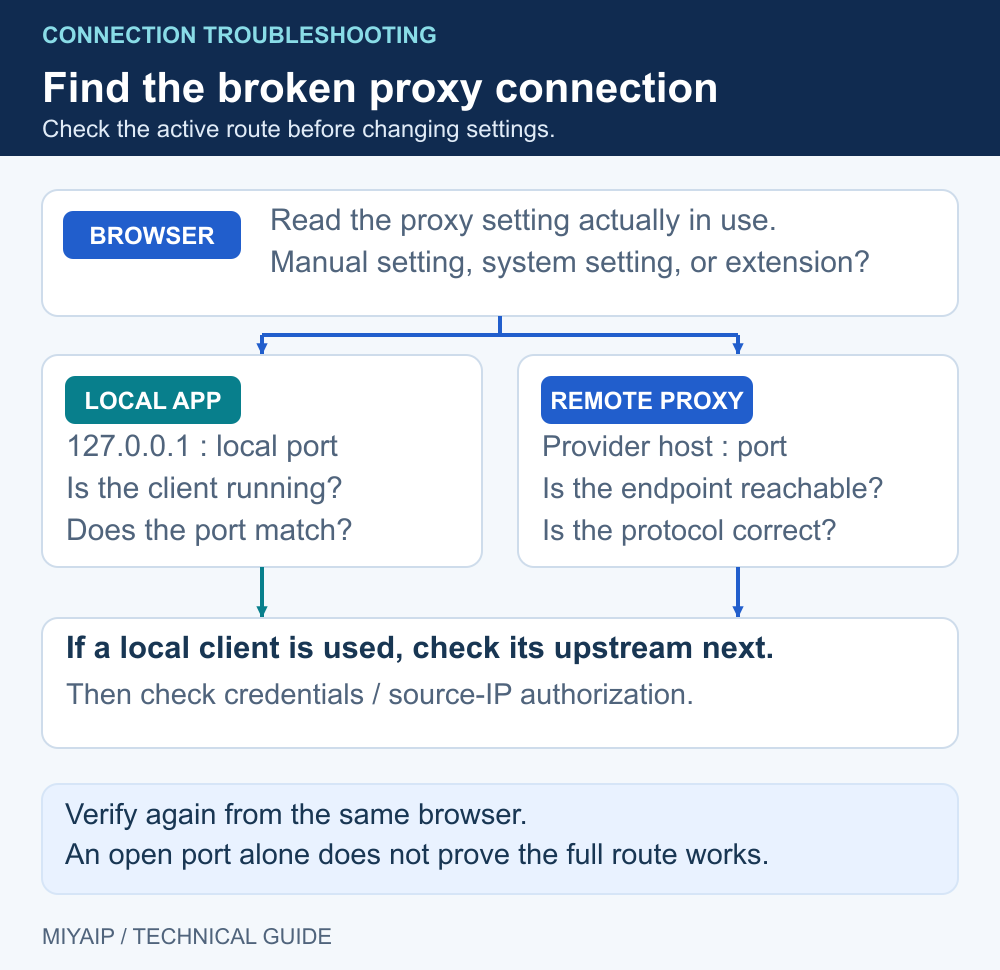
Identify the system setting, extension or local listener that Chrome uses.
Test and verify the route
Check the endpoint from the same device, then verify the browser exit and original destination.
ERR_PROXY_CONNECTION_FAILED means Chrome could not establish a connection to the proxy it was told to use. The failed step may be resolving the proxy hostname or connecting to its address and port. Start with that connection rather than changing the destination website.
First decide whether you intended to use a proxy. If an old local app left an unwanted setting behind, correct that setting. If the proxy is part of your workflow, keep the route and check its host, port, protocol and availability. On a managed device, use the configuration supplied by your administrator.
The steps below help you distinguish a browser setting problem from an unreachable endpoint and verify the repair from your own browser.
On this page: Find the active setting · Check connection fields · Test the route · Read the result · Verify the fix · FAQ
Start with the symptom you can reproduce
What you observe | Check first | What the result tells you |
|---|---|---|
Chrome fails, but a different application works | Chrome's proxy extension, policy and system proxy setting | The applications may be using different routes |
A proxy address is | The local proxy application and its listening port | The address points to this device; a closed app leaves nothing to accept the connection |
A connection test fails on the same device | Endpoint spelling, port, protocol and network reachability | The failure is not limited to Chrome's page rendering |
A remote checker succeeds but your browser fails | Your local network path and browser configuration | The checker and browser reach the endpoint from different places |
The connection returns HTTP 407 | Proxy authentication | The proxy answered; move to credentials or the required authentication method |
One site fails while an exit-IP check works | The target response and any target-specific rule | The proxy route works for at least one request; keep the actual target error |
1. Find the proxy setting Chrome is actually using
Open Chrome's Settings → System, or enter chrome://settings/system. Check whether the proxy setting is controlled by an extension or your organization. Otherwise, open the computer's proxy settings and inspect the active network configuration.
On Windows
Open Settings → Network & internet → Proxy. Inspect both the setup script and manual proxy sections. Record the existing values before editing them. If you intentionally use a proxy, correct the supplied server address and port. If a setting belongs to a local proxy app that you have stopped using, remove that specific setting and save.
On macOS
Open System Settings → Network, select the active network service, then choose Details → Proxies. Check the enabled HTTP, HTTPS, SOCKS or automatic configuration entry. Correct the entry used by your workflow; a change made to another network service will not repair the active one.
If an extension controls the proxy
Open the extension and inspect the selected profile. Check its endpoint and routing rules. To isolate an unwanted extension setting on your own unmanaged browser, temporarily turn off that extension and retest. Record which setting changes the result so you can restore the intended route afterward.
If the address is local
Start the local proxy app and confirm its current listening port. Do not assume a port such as 7890 or 8080 is correct for every client. The browser must point to the port that the application is actually listening on. The local app's upstream proxy is a separate connection.
For settings navigation, see the official Windows guide and macOS guide.
2. Check the endpoint you copied
Open the connection record for the proxy you intend to use. Compare fields one at a time instead of repeatedly pasting a complete connection string.
Field | Check |
|---|---|
Host | Use the connection host supplied by the provider, not a website URL or a separate displayed exit IP |
Port | Use the port paired with that host and protocol; keep it separate from a local client's listening port |
Protocol | Match HTTP, HTTPS or SOCKS to the endpoint and client; an HTTPS destination does not by itself mean you should select an HTTPS proxy |
Authentication | Use proxy credentials, with no extra spaces; do not substitute your website-account password |
Availability | Check plan expiry, balance or applicable usage limits and the current allocation |
For MIYAIP static proxies, open Purchased IPs and choose the intended native or relay details. A native connection from mainland China needs a working overseas network path. A relay connection uses its assigned relay host and port. Copy the complete set from one mode instead of mixing a native IP with a relay port.
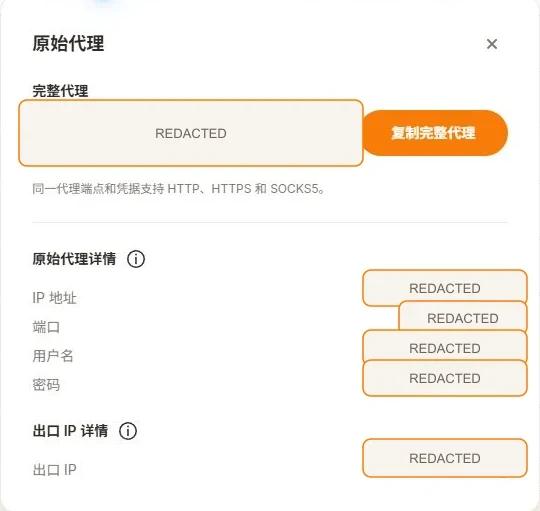
MIYAIP connection details separate the connection address from the exit IP. The source screenshot uses Chinese labels: 原始代理详情 = native proxy details; IP 地址 = connection IP; 端口 = port; 用户名 = username; 密码 = password; 出口 IP = exit IP. Values are redacted.
3. Test the endpoint, then test from your device
Open the MIYAIP Proxy Checker. Enter the endpoint you are checking, select the matching protocol and run a check. Read the reported reason if it fails: a timeout, a refused connection and an authentication error call for different changes.
The checker runs from MIYAIP's test service. It can provide a second observation of the endpoint, but its result does not show whether your own network or Chrome profile can reach the same endpoint.
For a same-device test, follow the curl and Python connection guide. Use the assigned endpoint, a supported protocol and a short timeout. Compare the proxied result with the connection you intended to use. Keep the test endpoint consistent when comparing results.
If your local proxy app uses localhost, test it on the device running that app. A remote proxy checker cannot reach a listener on your computer's loopback address.
Next steps
4. Change the setting indicated by the result
Result | Next action |
|---|---|
Proxy hostname cannot be resolved | Recopy the hostname and check whether it resolves from the same network. Do not replace it with an exit IP shown elsewhere in the dashboard. |
Connection refused | Check that the host and port belong together. For a local address, confirm that the proxy app is running and listening on that port. |
Connection times out | Check the network path, native-versus-relay requirements and endpoint availability. Compare with a second permitted network or provider support before changing unrelated browser settings. |
HTTP 407 or repeated proxy sign-in prompts | Verify the proxy credentials and authentication method. An HTTP response shows that a proxy answered; this is a different stage from failing to reach its port. |
Endpoint works locally, Chrome still fails | Recheck the browser's selected proxy profile, extension rules, system settings or managed policy. Confirm that Chrome uses the same endpoint as the successful test. |
Exit-IP check works, target site fails | Record the target status or message. Investigate that target and its access rules instead of treating every failure as the same connection error. |
Changing all settings at once makes the cause harder to identify. Retest the same small request after each relevant correction. If the error changes, use the new error to choose the next step.
5. Verify the browser route after the fix
- Reopen the affected page in the same Chrome profile and network where the error occurred.
- Open the IP and browser environment check in that profile. Inspect the exit observed by the page.
- Compare the result with the intended proxy. For a fixed proxy, compare it with the assigned exit. For a rotating product, check the selected location and session behavior rather than expecting a permanent address.
- Open the original target again. A successful IP check and a successful target request answer different questions; keep both observations.
- Restore any extension or route temporarily changed during diagnosis, then repeat the browser check under the configuration you will actually use.
If the problem remains, share the browser version, timestamp, connection mode, redacted host/port, exact error and whether a same-device test succeeded. That gives support a reproducible starting point without exposing a complete authentication string.
Frequently asked questions
Does this error mean my internet connection is down?
Not necessarily. Chrome may be trying to use a proxy that it cannot reach while other applications use a different route. Check the active proxy setting and test from the same device.
Should I disable the proxy?
Only if the setting is unwanted and your intended connection does not require it. If the proxy is part of a work or managed-network setup, correct the route or ask the administrator for its current configuration.
Will clearing cookies fix ERR_PROXY_CONNECTION_FAILED?
Cookies do not correct a wrong proxy hostname or a closed port. Begin with the effective proxy setting and endpoint reachability. Investigate site data only if the evidence later points to a site-specific issue.
Why does a proxy checker say “live” while Chrome still fails?
The checker and Chrome may use different networks, protocols or credentials. A remote checker can reach an endpoint that your local network cannot reach. Compare the same endpoint from your device and confirm Chrome's selected profile.
Is net::ERR_PROXY_CONNECTION_FAILED in Playwright a different error?
It is the Chromium connection error surfaced by the automation client. Check the proxy supplied when the browser was launched and whether the browser's runtime can reach that endpoint. A local address inside a container points to that container, not automatically to your host computer.
Is HTTP 407 the same problem?
No. HTTP 407 is a proxy authentication response. Focus on the credentials and supported authentication method once the proxy has answered. The MIYAIP connection guide covers that branch.
Check the endpoint, then confirm the route
Use a connection test to inspect the proxy, and verify the exit from the browser profile you will use for your task.
Next steps
If the proxy is reachable but HTTPS tunnelling fails, continue with the CONNECT tunnel troubleshooting guide.
Run the local demonstration
Download network_demo.py, or copy the complete source below into a file with that name. Run python network_demo.py using Python 3. The service listens only on 127.0.0.1:8766; stop it with Ctrl+C.
"""Local HTTP demonstration. No external requests, credentials or MIYAIP service calls."""
from http.server import BaseHTTPRequestHandler, ThreadingHTTPServer
from urllib.parse import urlsplit
import json
import time


class DemoHandler(BaseHTTPRequestHandler):
    def log_message(self, *_):
        pass

    def reply(self, code, body=b"", headers=None):
        self.send_response(code)
        for key, value in (headers or {}).items():
            self.send_header(key, value)
        self.send_header("Content-Length", str(len(body)))
        try:
            self.end_headers()
            self.wfile.write(body)
        except (BrokenPipeError, ConnectionResetError, ConnectionAbortedError):
            pass

    def do_CONNECT(self):
        self.reply(407, headers={"Proxy-Authenticate": 'Basic realm="local-demo"'})

    def do_GET(self):
        path = urlsplit(self.path).path
        if path == "/redirect":
            return self.reply(302, headers={"Location": "/headers"})
        if path == "/loop":
            return self.reply(302, headers={"Location": "/loop"})
        if path == "/slow":
            time.sleep(2)
        if path in {"/headers", "/slow"}:
            payload = {"method": self.command, "headers": dict(self.headers)}
            return self.reply(200, json.dumps(payload, indent=2).encode(),
                              {"Content-Type": "application/json"})
        self.reply(404, b"Use /headers, /redirect, /loop or /slow")

    def do_POST(self):
        body = self.rfile.read(int(self.headers.get("Content-Length", "0")))
        if urlsplit(self.path).path == "/redirect307":
            return self.reply(307, headers={"Location": "/headers"})
        if urlsplit(self.path).path == "/redirect302":
            return self.reply(302, headers={"Location": "/headers"})
        payload = {"method": self.command, "headers": dict(self.headers),
                   "body": body.decode("utf-8", errors="replace")}
        self.reply(200, json.dumps(payload, indent=2).encode(),
                   {"Content-Type": "application/json"})


if __name__ == "__main__":
    print("Local demonstration: http://127.0.0.1:8766 (Ctrl+C to stop)", flush=True)
    ThreadingHTTPServer(("127.0.0.1", 8766), DemoHandler).serve_forever()